Do you ever find yourself overwhelmed while trying to make sense of endless data points and staff reports in Excel? You’re not alone. Many team managers struggle to transform raw data into actionable insights. The creation of a well-structured Excel Dashboard for Staff Management can seem daunting, especially when efficiency and quick data retrieval are essential for making informed decisions. This comprehensive guide is tailored to help you overcome these challenges, ensuring you excel in deploying the full capacity of Excel for staff management.
In this guide, we’ll walk through the steps on how to create a Dashboard in Excel, from simple techniques to sophisticated analytics. Learn to utilize our user-friendly Excel dashboard templates for staff management, gaining clarity on complex data and thereby enhancing your decision-making process. With our straightforward Excel staff management tips, we aim to not only increase your proficiency but empower you with the tools to lead a more productive and motivated team.
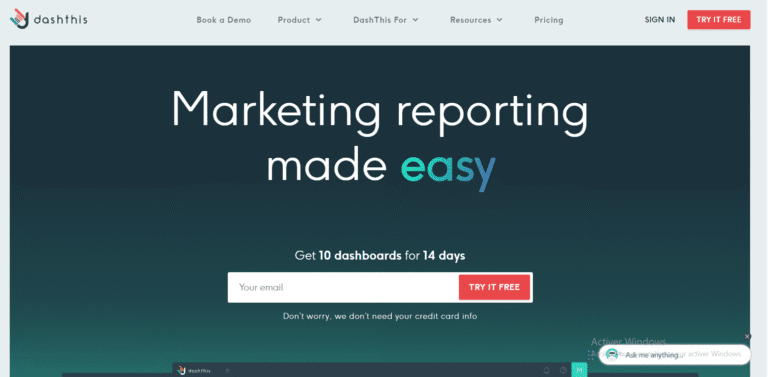
DashThis: Marketing Reports Made Simple
Automated and easy-to-use marketing reporting tool to save hours of work and create impactful reports.

Key Features
- Automated and customizable dashboards
- Integrations with 80+ platforms
- Pre-built templates for different reports
- White-label reports
- Automated sharing and scheduling
- AI Insights for smart analytics
* This is an affiliate link. If you make a purchase through this link, I may receive a commission at no extra cost to you.
Understanding Staff Management Dashboard
Staff management dashboards in Excel provide a robust platform for human resource professionals, team managers, and small business owners to streamline their workforce management processes. By integrating Excel Dashboard Templates for Staff Management, users can efficiently monitor various metrics regarding staff performance, attendance, and productivity all from one central location. This not only enhances the ability to make informed decisions but also saves significant time and resources that can be better allocated elsewhere.
1- Key Components of Staff Management Dashboard
At the foundation of an effective staff management dashboard are several key components that ensure it serves its intended purpose. Essential elements such as data visualization tools, which include bar charts, pie charts, and line graphs, play a pivotal role. These tools help in depicting data vividly to make anomalies and trends stand out. Furthermore, integrating features like Excel Staff Management Tips into the dashboard can guide users on maximizing the use of Excel functionalities to improve data tracking and reporting accuracy.
2- Types of Staff Management Dashboard
There are varied types of staff management dashboards tailored to meet different managerial needs. Operational dashboards provide real-time monitoring of staff performance, vital for day-to-day management. Strategic dashboards, on the other hand, focus on long-term metrics and data analysis, aiding in high-level decision making. Knowledge of how to create a Dashboard in Excel is crucial in customizing these dashboards to reflect the specific needs of the business or department efficiently. By leveraging such targeted dashboards, managers can foster a better work environment and achieve organizational goals more effectively.
Professional Alternatives to Excel for Staff Management Dashboard
In the evolving landscape of business technologies, Excel remains a versatile tool for various tasks, including creating dashboards. However, specialized professional tools offer advanced features that could enhance staff management more efficiently. Here are three robust alternatives to Excel that are worth considering for your staff management dashboards.
DashThis: Marketing Reports Made Simple
Automated and easy-to-use marketing reporting tool to save hours of work and create impactful reports.
Key Features
- Automated and customizable dashboards
- Integrations with 80+ platforms
- Pre-built templates for different reports
- White-label reports
- Automated sharing and scheduling
- AI Insights for smart analytics
* This is an affiliate link. If you make a purchase through this link, I may receive a commission at no extra cost to you.
Tableau: Dynamic Data Visualization
Tableau is a leader in the data visualization space, offering powerful tools for creating dynamic Staff Management Dashboards, a step above the standard offerings from Excel Dashboard Templates for Staff Management. Tableau excels in its ability to handle large datasets effortlessly and updates dashboards in real-time as new data comes in, which is particularly beneficial for managers needing the latest information on staff performance and resource allocation. Users can utilize drag-and-drop features to create dashboards, which makes it user-friendly for non-technical managers. Furthermore, Tableau’s mobile-friendly design ensures that these dashboards are accessible on various devices, enhancing the flexibility in monitoring and decision-making.
Power BI: Integrated Microsoft Ecosystem
For organizations entrenched in the Microsoft ecosystem, Power BI provides a seamless integration not just with Excel but also with other Microsoft services. This tool stands out for its deep integrative capabilities, making it a robust companion for those used to the Excel environment. Power BI allows users to pull data directly from Excel spreadsheets, SQL databases, and even third-party services, creating a centrally managed dashboard that condenses all staff management needs. Its strong capabilities in AI-powered analytics and team collaboration tools make it an invaluable alternative for creating more refined and predictive Staff Management Dashboards. The ease with which users can share insights and reports makes it an essential tool for team managers and HR professionals.
Monday.com: Streamlined Task Management
Unlike Tableau and Power BI, which focus heavily on data visualization and analytics, Monday.com offers a visually intuitive platform for task and project management with excellent dashboard capabilities. This tool is particularly effective for managers who need to track project progress, workforce allocation, and performance metrics in real-time. With its highly customizable setup, users can create Staff Management Dashboards that provide both high-level overviews and granular details of team dynamics and individual contributions. Moreover, Monday.com integrates well with various productivity apps, enhancing its functionality and making it an all-encompassing tool for staff management beyond just traditional dashboarding functions.
While Excel serves as a fundamental tool for many businesses, these professional alternatives provide specific advantages that cater to dynamic and extensive staff management needs. Choosing the right tool depends heavily on the particular requirements of your team or organization, the size of your data, and the level of detail needed in reporting and visualization.
Planning Your Staff Management Dashboard
Identify Your Audience and Objectives for Staff Management Dashboard
When planning a Staff Management Dashboard, the first step is to clearly identify who the primary users of the dashboard will be and what objectives it seeks to fulfill. Typically, your audience could range from HR professionals and team managers to executives and small business owners. Understanding the audience helps tailor the dashboard’s functionality and complexity to meet their specific needs. Setting clear objectives, such as improving staff allocation, tracking performance metrics, or streamlining HR reporting processes, is crucial. These objectives guide the structure and features of the dashboard, ensuring it delivers meaningful and actionable insights.
Decide on Key Performance Indicators (KPIs) of Staff Management Dashboard
Selecting the right Key Performance Indicators (KPIs) is vital for the effectiveness of a Staff Management Dashboard. KPIs should be directly aligned with the objectives previously established. For instance, if the goal is to enhance performance evaluation, relevant KPIs might include employee productivity rates, quality of work, and timeline adherence. KPIs serve as the metrics by which success is measured and provide a clear line of sight into team dynamics and individual contributions, making it easier to make informed management decisions.
Sketch a Layout and Design Concept for your Staff Management Dashboard
The layout and design of your Staff Management Dashboard should prioritize clarity and ease of use to ensure that it effectively communicates the necessary information. Start by sketching a basic framework that organizes KPIs and data points logically, such as grouping related metrics together. Consider visual elements like charts, graphs, and color coding that can help distinguish data sets and make the dashboard not only functional but visually engaging. The design should cater to quick glances for insights and deeper analysis without overwhelming the user.
Tool Selection for Data Management and Visualization in Staff Management Dashboard
Choosing the right tools for data management and visualization impacts the functionality and efficiency of a Staff Management Dashboard. Software like Excel is commonly used due to its flexibility and widespread availability. Highlighting tools like Power BI or Tableau could also be considered for more dynamic data interaction and sophisticated visualizations. Each tool has its strengths; Excel is excellent for basic dashboards and cost-efficiency, while Power BI and Tableau offer more powerful analytics capabilities, albeit at a higher complexity and cost. Your selection should align with the dashboard’s objectives, the technical skill level of the end-users, and the complexity of data being manipulated.
DashThis: Marketing Reports Made Simple
Automated and easy-to-use marketing reporting tool to save hours of work and create impactful reports.
Key Features
- Automated and customizable dashboards
- Integrations with 80+ platforms
- Pre-built templates for different reports
- White-label reports
- Automated sharing and scheduling
- AI Insights for smart analytics
* This is an affiliate link. If you make a purchase through this link, I may receive a commission at no extra cost to you.
Collecting and Preparing Data for Staff Management Dashboard
Data Collection for Staff Management Dashboard
Effective data collection is crucial for powering a Staff Management Dashboard, which aims to provide insightful analysis on staff efficiency, distribution, and productivity. The primary sources of data include human resources databases, payroll systems, and project management tools. To ensure the reliability and validity of data, it is essential to implement standardized data entry procedures and regular audits. Integrating APIs to synchronize data automatically from various sources can help maintain the freshness and accuracy of the data. Validity checks, such as data type verifications and range checks, should be applied at the point of entry to minimize errors.
Data Importing into Excel for Staff Management Dashboard
Once data is collected, the next step involves importing it into Excel, which serves as a flexible tool for managing and analyzing staff data. Excel supports various data formats including CSV, JSON, XML, and data connected directly from databases like SQL Server. Utilizing the ‘Data’ tab in Excel, users can import data using the ‘Get & Transform Data’ group, which enables connections to different sources and the direct importation into spreadsheets. During import, leveraging features such as ‘Power Query’ allows users to automate data transformation and cleaning processes to prepare data effectively for subsequent use.
Data Cleaning for Staff Management Dashboard
Data cleaning is a critical step in ensuring the quality of the data in the Staff Management Dashboard. Common issues like duplicate entries, spelling errors, or inconsistent formats must be addressed. Excel offers a variety of tools for data cleaning; ‘Remove Duplicates’ can clear repeated data points, ‘Text to Columns’ assists in fixing structural errors, and conditional formatting can highlight discrepancies. Additionally, functions like TRIM can remove extra spaces, and data validation rules ensure entries meet predefined criteria. This process helps in attaining a cleansed dataset that delivers reliable insights when analyzed.
Data Organization for Staff Management Dashboard
Organizing data efficiently within Excel is essential for effective analysis and presentation in a Staff Management Dashboard. Data should be structured in clear, concise tables with appropriately named headers to reflect the data they represent. Utilizing Excel’s ‘Table’ feature enhances data management, allowing for easier sorting, filtering, and searching. Categorizing data into logical groups and using named ranges can also simplify formula creation and maintenance, enhancing both the dashboard’s usability and performance.
Dynamic Data Ranges for Staff Management Dashboard
In an evolving business environment, being able to adapt to new data without constant manual adjustments is crucial. Dynamic data ranges in Excel are vital for Staff Management Dashboards as they automatically adjust when new data is added. This can be achieved by using Excel Tables, which dynamically expand and contract, or through named ranges with OFFSET and COUNTA functions to accommodate new entries. These practices ensure that dashboards remain up-to-date and reflective of the latest data, allowing for timely and accurate decision-making.
DashThis: Marketing Reports Made Simple
Automated and easy-to-use marketing reporting tool to save hours of work and create impactful reports.
Key Features
- Automated and customizable dashboards
- Integrations with 80+ platforms
- Pre-built templates for different reports
- White-label reports
- Automated sharing and scheduling
- AI Insights for smart analytics
* This is an affiliate link. If you make a purchase through this link, I may receive a commission at no extra cost to you.
Building the Staff Management Dashboard
Creating the Staff Management Dashboard Layout
To start building an efficient Staff Management Dashboard in Excel, begin by setting up a new workbook tailored to the needs of staff management. Choose a template that aligns with your organizational structures such as weekly schedules, attendance records, and employee performance metrics. The initial setup should include separate sheets for different types of information to keep data organized — for instance, one sheet for personal details, another for performance reviews, and a third for attendance records. It’s imperative to implement a consistent data entry format to facilitate later stages of analysis and visualization.
Adding Charts and Graphs in your Staff Management Dashboard
Visual aids such as charts and graphs are vital to enhancing the interpretability of the complex data in your Staff Management Dashboard. Utilize Excel’s rich array of chart options by selecting types that best represent the underlying data: pie charts for demographic distributions, bar charts for performance comparisons, and line graphs for tracking changes over time. Each chart should be customized in terms of color and style to reflect your corporate branding, and placed strategically within the dashboard for easy visibility and aesthetics.
Incorporating PivotTables in your Staff Management Dashboard
PivotTables are one of Excel’s most powerful features for managing extensive datasets in a Staff Management Dashboard. Start by selecting a comprehensive range of data such as a full employee list which includes various attributes and metrics. With PivotTables, you can dynamically organize and summarize this data, enabling clear segmentations and aggregates by categories such as department or performance ratings. Configuration of the PivotTables will involve setting data fields into row, column, and filter areas which can then be manipulated to examine different perspectives and trends within the staff structure.
Using Formulas and Functions in your Staff Management Dashboard
Enhance data analysis within your Staff Management Dashboard through the strategic use of Excel formulas and functions. Key functions like SUMIF are crucial for tallying selective data points – for example, total hours worked by a specific department. VLOOKUP can be indispensable for cross-referencing employee details across multiple data sheets. Furthermore, apply conditional formatting to offer visual cues like color scaling which facilitates faster comprehension of data such as performance levels or attendance records.
Adding Interactivity with Slicers and Timelines in Staff Management Dashboard
To make your Staff Management Dashboard more interactive, integrate slicers and timelines that allow end-users to filter data dynamically. Slicers can be particularly useful for reports where viewers might need to focus on specific departments, employment statuses, or time periods. Set these up by associating slicers with your PivotTables, giving users a seamless way to customize data views. Timelines are useful for fast adjustments to the time frame, enhancing the navigation through longitudinal data like monthly performance tracking.
Finalizing Your Staff Management Dashboard
The last step in finalizing your Staff Management Dashboard involves a thorough review of all elements for data accuracy and overall presentation. Verify that all formulas and data connections function correctly to prevent any discrepancies. Additionally, secure your workbook by implementing features like password protection to control editing rights and restrict unauthorized access. Once reviewed, your dashboard is ready for distribution or for hosting impactful presentations to the management team.
DashThis: Marketing Reports Made Simple
Automated and easy-to-use marketing reporting tool to save hours of work and create impactful reports.
Key Features
- Automated and customizable dashboards
- Integrations with 80+ platforms
- Pre-built templates for different reports
- White-label reports
- Automated sharing and scheduling
- AI Insights for smart analytics
* This is an affiliate link. If you make a purchase through this link, I may receive a commission at no extra cost to you.
Utilizing Advanced Excel Tools in Staff Management Dashboard
Advanced Chart Options in Staff Management Dashboard
Incorporating advanced chart options in Excel enhances the visual representation of staffing data, making the Staff Management Dashboard not only more informative but also visually engaging. Excel users can customize chart elements such as axes, titles, and legends to match specific data needs. By using combination charts, executives can view different data types together, such as combining a line graph with a bar chart to compare actual versus projected staff numbers over time. Additionally, new Excel chart types like the Waterfall chart help in visualizing running totals as they are adjusted by increases and decreases, which is excellent for visualizing staff turnover, while the Sunburst chart is perfect for breaking down employee attributes or groups in a multilevel hierarchy.
PivotTables and PivotCharts in Staff Management Dashboard
PivotTables and PivotCharts are powerful tools in Excel that allow users to dynamically summarize and analyze large datasets in a Staff Management Dashboard. With PivotTables, users can quickly perform data segmentation and aggregation, essential for analysing staff demographics or performance categories. Advanced techniques include using calculated fields to add custom formulas in a PivotTable, or grouping data to analyze data at different time periods or categories. Corresponding PivotCharts can visually enhance these summaries, providing clear and dynamic graphical representations of the data, which adjust automatically as the PivotTable data changes.
Data Validation in Staff Management Dashboard
Data integrity is paramount in a Staff Management Dashboard. Utilizing Excel’s data validation feature ensures that the input data conforms to predefined criteria, thereby reducing errors. For instance, setting up data validation rules can restrict input to certain date ranges or numeric values in fields such as date of hire or hours worked. Employing drop-down lists for fields like department names or job titles can also help in maintaining data uniformity and accuracy. Advanced tips include the use of custom formulas in data validation rules for more sophisticated checks such as cross-field validation.
Conditional Formatting in Staff Management Dashboard
Conditional formatting in Excel provides a way to visually accentuate important data trends, patterns, or outliers within a Staff Management Dashboard. By applying conditional formatting rules, users can set different formats for cells that meet specific criteria, enhancing the dashboard’s ability to communicate insights. Practical uses include highlighting staff members with performance ratings above or below a certain threshold using color scales, or marking attendance exceptions with icon sets. Formula-based conditions can also be used for more complex conditional formats, enhancing the dashboard’s analytical capabilities.
Macros and VBA Scripts in Staff Management Dashboard
To increase efficiency in managing staff data, macros and VBA scripts serve as tools to automate repetitive tasks within the Staff Management Dashboard. Users can create macros to automate regular updates, such as monthly report generation or data cleanup tasks. Editing these scripts allows for custom automation tailored closely to specific management requirements. It is crucial, however, to be aware of the security implications associated with VBA scripts, as they can potentially expose the system to risks if not handled with appropriate security measures such as disabling macros from unknown sources.
Security Features in Staff Management Dashboard
Ensuring the security of data within a Staff Management Dashboard is essential and can be effectively managed using Excel’s built-in features. Protecting sensitive employee data can be achieved by password-protecting workbook structures or specific worksheets, thereby preventing unauthorized access. Additionally, spreadsheet encryption secures data at rest, safeguarding against external breaches. For shared documents, restricting editing capabilities to particular users can further secure the data, ensuring integrity and confidentiality in sensitive staffing operations.
DashThis: Marketing Reports Made Simple
Automated and easy-to-use marketing reporting tool to save hours of work and create impactful reports.
Key Features
- Automated and customizable dashboards
- Integrations with 80+ platforms
- Pre-built templates for different reports
- White-label reports
- Automated sharing and scheduling
- AI Insights for smart analytics
* This is an affiliate link. If you make a purchase through this link, I may receive a commission at no extra cost to you.
Designing with Excel Staff Management Dashboard Templates
Advantages of Using Excel Staff Management Dashboard Templates
Utilizing pre-designed Excel templates for Staff Management Dashboards offers significant benefits for project managers and HR departments. Firstly, templates save time by providing a ready-made structure that only requires inputting specific data, eliminating the need to build complex formula setups and layouts from scratch. This increases productivity and allows managers to focus more on analysis rather than on setup. Additionally, these templates help in maintaining consistency in reporting and can provide a professional look that enhances the presentation and readability of workforce data. This professional appearance is crucial when sharing reports with stakeholders and senior management, ensuring that information is conveyed effectively and accurately.
Finding Excel Staff Management Dashboard Templates
Locating the right Excel template for a Staff Management Dashboard can be straightforward if you know where to look. The official Microsoft Office website is an excellent starting point as it provides a variety of templates that are compatible with Excel and are designed to meet basic business needs related to staff management. Furthermore, numerous third-party providers offer more specialized and advanced templates, which can sometimes provide additional features that are not available in the standard Microsoft offerings. Additionally, exploring industry-specific forums and communities online can yield user-created templates and advice on which templates are best suited for specific project management tasks or challenges in staff management.
Customizing Templates to Fit Your Needs in Staff Management Dashboard
While off-the-shelf templates are a great starting point, to truly make them effective, customization is often necessary. This process involves altering layouts to better fit the visual reporting style that is most intuitive for your organization or adapting the integration of unique features that cater specifically to your business’s operational nuances. For example, adjusting formulas and functions within the template ensures that they align perfectly with the specific performance metrics your business prioritizes. It’s also beneficial to incorporate automation features such as macros to streamline data processing and visualization for ongoing updates.
Maintaining and Updating Your Staff Management Dashboard
Once an Excel dashboard template is in use, it’s essential to keep it both maintained and updated to adjust to new data inputs, changing business conditions, or evolving project requirements. Regularly updating data sources, refreshing charts, and pivot tables ensures that all displayed information remains current and relevant. Additionally, periodically revisiting the template to ensure it aligns with organizational changes and updates in Excel software itself can help prolong the dashboard’s effectiveness and utility. Keeping up with these updates demands a routine check-in system, potentially integrated into the regular reporting cycle of the business.
DashThis: Marketing Reports Made Simple
Automated and easy-to-use marketing reporting tool to save hours of work and create impactful reports.
Key Features
- Automated and customizable dashboards
- Integrations with 80+ platforms
- Pre-built templates for different reports
- White-label reports
- Automated sharing and scheduling
- AI Insights for smart analytics
* This is an affiliate link. If you make a purchase through this link, I may receive a commission at no extra cost to you.
Tips and Tricks in Staff Management Dashboard
Optimize Staff Management Dashboard Performance
Enhancing the performance of your Excel-based Staff Management Dashboard involves several critical strategies. The first is to limit the use of volatile functions such as INDIRECT(), RAND(), and NOW(), which can cause the entire workbook to recalculate whenever any change is made, slowing down performance. Instead, use more stable alternatives where possible. Additionally, aim to optimize formula calculations by using helper columns to simplify complex calculations, breaking them down into more manageable steps. This not only improves performance but also makes your formulas easier to check and maintain. It’s also essential to manage data connections effectively by ensuring that external data connections are refreshed only as necessary to prevent delays in data processing.
Enhance Data Visualization for Staff Management Dashboard
Advanced data visualization techniques can significantly improve the utility and appeal of your Staff Management Dashboard. Utilizing Excel’s extensive chart options such as pivot charts, sunburst, or waterfall charts, can provide deeper insights through visual representation. Implement conditional formatting to highlight data trends and variances that may require attention, adjusting formats based on the values they contain. This not only makes the dashboard aesthetically engaging but also focuses user attention on important indicators. Essentially, ensure that your dashboard does not overwhelm with data; instead, choose key metrics that align with staff management goals.
Improve User Interaction for Staff Management Dashboard
To create a highly interactive and user-friendly Staff Management Dashboard, integrate form controls like combo boxes or option buttons for streamlined navigation and data interaction. Incorporating slicers can particularly enhance user experience for dashboards built on pivot tables, making it easier for users to filter and segment data dynamically. Consider creating interactive elements with Excel’s hyperlinks or macros to automate routine tasks and navigate complex data sets effectively. The aim should be to make the dashboard not just a reporting tool, but a comprehensive, interactive platform for end-users.
Maintain and Update Your Staff Management Dashboard
Maintenance is key to ensuring the effectiveness and longevity of your Staff Management Dashboard. Schedule regular updates to your dashboards in terms of both functionality and data content. Ensure that your formulas and data connections are up to date with current data requirements and operational systems. Periodically revisiting the dashboard template to incorporate new tools and features offered by newer versions of Excel can also prove beneficial. Always back up versions before making significant changes, and document those updates making troubleshooting and tracking changes easier.
Ensure Accuracy and Reliability for Staff Management Dashboard
Accuracy and reliability are foundational to the success of any data-dependent tool. In your Staff Management Dashboard, implement rigorous data verification processes to validate data accuracy before it enters your dashboard. Also use Excel’s data validation features to ensure that the input data conforms to expected formats and constraints. Deploy error-checking formulas to flag any anomalies or inconsistencies in real-time. Moreover, maintaining an audit trail of changes to dashboard configurations and datasets is critical for tracking the source of potential errors and validating your data’s integrity over time.
DashThis: Marketing Reports Made Simple
Automated and easy-to-use marketing reporting tool to save hours of work and create impactful reports.
Key Features
- Automated and customizable dashboards
- Integrations with 80+ platforms
- Pre-built templates for different reports
- White-label reports
- Automated sharing and scheduling
- AI Insights for smart analytics
* This is an affiliate link. If you make a purchase through this link, I may receive a commission at no extra cost to you.